Docs / StarVault manual / Settings and Preferences
Settings and Preferences
Timeouts, themes, fonts, sync, backups and export.
Settings are reached from the gear at the top right of the window. Everything here is stored in StarVault's own configuration, not in the vault, so changing a theme or a timeout does not rewrite the encrypted file.
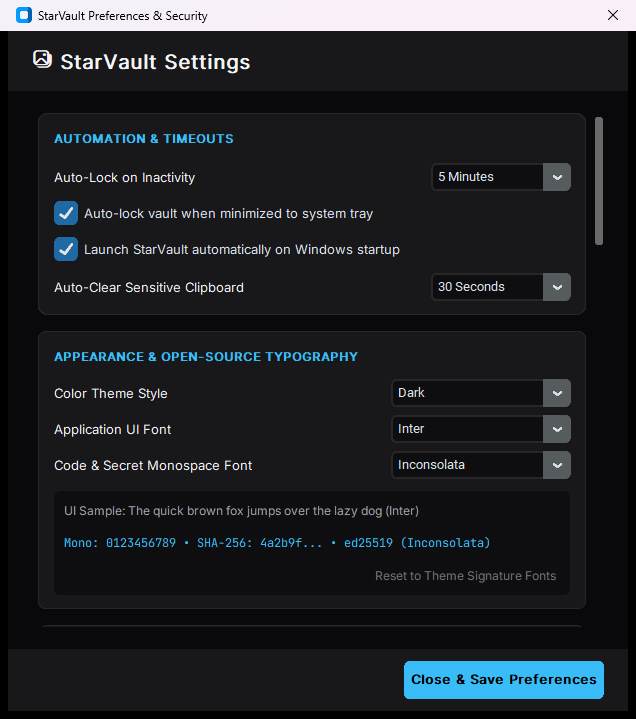
The settings window: timeouts, tray and typography.
Automation & timeouts
| Setting | What it does | Default |
|---|---|---|
| Auto-Lock on Inactivity | Locks the vault after this long without a keystroke or a click | 5 minutes |
| Auto-lock vault when minimized to system tray | Locks as soon as the window is hidden to the tray | on |
| Auto-Clear Sensitive Clipboard | Wipes anything StarVault copied after this long | 30 seconds |
| Launch StarVault automatically on Windows startup | Starts the program, minimised, when you log in | off |
| Start minimised to tray | Opens without showing the window | off |
The two timeouts are the ones worth thinking about. Auto-lock is the length of time a walk-away leaves your vault open; the clipboard timer is the length of time a copied password is readable by whatever else is running. Both can be set short — 1 minute and 10 seconds is a perfectly workable pair — and neither makes the vault annoying to use, because unlocking is fast.
Auto-lock on inactivity is measured from the last interaction with StarVault, not the last system-wide input. Typing in another window does not keep it awake.
Appearance & open-source typography
| Setting | Choices |
|---|---|
| Color Theme Style | 24 built-in palettes — Dark, Light, Nord, Dracula, Console, Tokyo Night, Catppuccin Mocha, Gruvbox Dark, One Dark Pro, Solarized (Dark and Light), GitHub (Dark and Light), Monokai Pro, Rosé Pine, Ayu Dark, Kanagawa, Everforest Dark, Cyberpunk 2077, Horizon Dark, Cobalt2, Midnight OLED, Trendy, Catppuccin Latte |
| Application UI Font | Inter, Plus Jakarta Sans, Outfit, Space Grotesk, Fira Sans, Roboto, Rajdhani |
| Code & Secret Monospace Font | JetBrains Mono, Fira Code, Inconsolata |
Every font in these lists is an open-source face with a licence that allows redistribution, and every one ships inside StarVault — there is nothing to install and no font that silently falls back to something else. Reset to Theme Signature Fonts returns both pickers to the pair the current theme was designed around.
Changing either font applies immediately across the whole window; there is no restart.
The theme also decides the fonts, so switching from Dark to Console changes the typography as well as the colours unless you have deliberately chosen a font yourself.
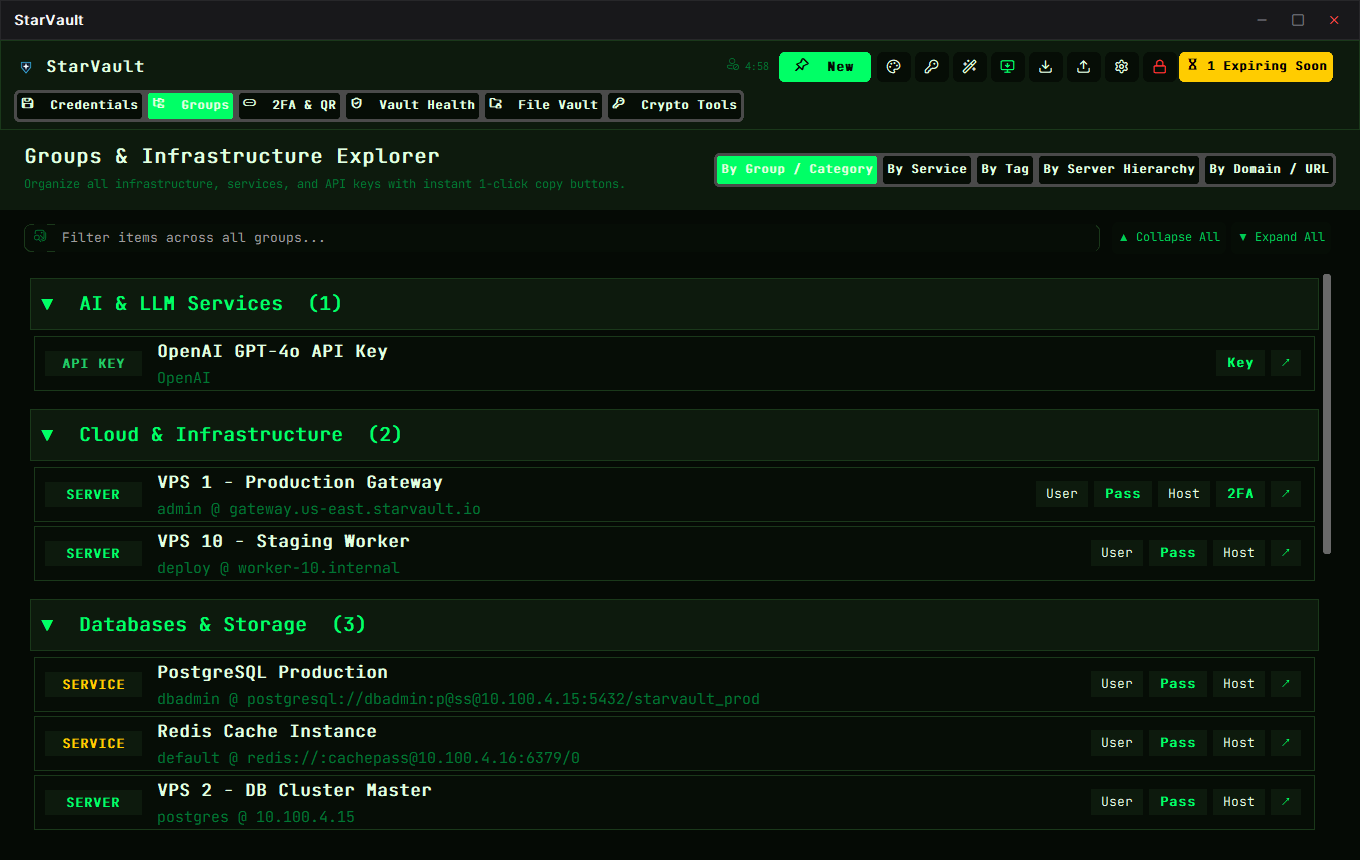
One of the built-in themes.
Passive cloud sync (directory mirroring)
StarVault has no server and no account, so "sync" here means something narrower than it does elsewhere: it writes a copy of the encrypted vault into a folder you nominate, and reads it back if you ask it to. Point that folder at Dropbox, Google Drive, OneDrive, a Synology share, or a USB stick, and the copy travels by whatever means that folder already travels by.
Two things follow from the copy being encrypted:
- The cloud provider sees a file of random bytes. It cannot read your entries, because the key never leaves your machine.
- A conflict between two machines is a conflict between two encrypted files. StarVault does not try to merge them; you choose which one to keep.
Set the folder, leave the rest alone, and the mirror keeps itself current on every save.
Portable database & manual backup
The backup folder setting is what makes the mirror above work. Leave it blank and StarVault writes nowhere but its own vault file.
To take a copy by hand, use Export — see below. To come back from one, use Restore from Backup (.db)... on the unlock screen.
Changing the master password
Change Master Password re-derives the key from a new password and re-encrypts the vault with it. The old password stops working the moment it completes, and the new one is the only one that opens the file afterwards.
Two things to know before you do it:
- It needs the current password, so it cannot be done by someone who finds an unlocked window and walks up to it.
- Any backup you took before the change still opens with the OLD password. That is not a bug — those files were encrypted with the old key. If you change the master password, take a fresh backup and destroy the old ones, or you will keep an old password alive in a drawer.
If the vault is in two-factor mode, the keyfile is unchanged by this — the master password and the keyfile are independent halves.
Version history limits
| Setting | Meaning |
|---|---|
| Max Versions to Keep per Entry | How many past versions of an entry are retained. 0 means unlimited |
| Maximum Snapshot Age | How long those versions are kept before being dropped |
Version history is what makes an accidental overwrite harmless, but it is also the main way a vault grows. A few hundred entries with unlimited history is still small — under a megabyte — so the default is generous on purpose. Set a number only if you are keeping large files in the vault as well.
Export
Export writes a copy of your data in a format something else can read. The dialog asks which parts and which format:
| Part | What it covers |
|---|---|
| CSV Data | The entries as a spreadsheet — one row per entry |
| Files (.pem, .ovpn, configs) | Files attached to entries |
| Keys & Certs | Keypairs and certificates |
Archive Format chooses the container, and Archive Password encrypts it. Leave the password blank for an unencrypted archive — which is fine for a CSV you are about to import somewhere, and a bad idea for anything holding keys.
An exported archive is not encrypted the way the vault is. If you set no archive password, the CSV inside is plain text. Export to a temporary location, do what you needed to do, and delete it — do not leave it in your Downloads folder.
Next
- Themes & Customization — what each theme changes
- Running StarVault — the tray and the window
- Universal Vault Export & Migration — moving to another manager
Updated 2026-11-05