Docs / StarVault manual / Adding and Editing Entries
Adding and Editing Entries
The five kinds of entry, the form, versions, and getting values out.
Everything in StarVault is an entry. There are five kinds, and the kind decides which fields the form shows — a server asks for a host and a port, an API key asks for a token, a keypair asks for a key. Choosing the right kind at the start saves filling in fields you do not need.
The five kinds
| Kind | Use it for | The fields that matter |
|---|---|---|
| Server | SSH hosts, VPS instances, routers, anything you log in to | Hostname or IP, Port, Username, Password, Sudo password, SSH private key, OS notes |
| Service | A login on a website or an app — a dashboard, a shop, a mail account | Username, Password, the service's URL |
| Domain | A name you own | Domain name, Registrar, Expiry date, Auto-renew, DNS provider, Nameservers, Auth code |
| API Key | A token rather than a password | Provider, API token, the environment it belongs to |
| Keypair | A key you generated or were issued | Key name, Key type, Fingerprint, Public key, Private key |
An entry does not have to pick just one: a server can carry a login and a key, and any entry can hold files.
Adding an entry
Press New Entry at the top of the window.
- Pick the kind from the row of buttons at the top of the form. The fields below change to match.
- Give it a title. This is what you will search for later, so make it the thing you would actually type — "Hetzner VPS — Frankfurt", not "server 3".
- Fill in the fields that matter. Only the title is required. Everything else can be left empty and filled in later.
- Group and tag it. The Groups box takes a comma-separated list (
Infrastructure, Production) and the Relational Tags box takes free-form labels (vps1, homelab, docker). Groups are the broad shelf an entry sits on; tags are the sticky notes on it. Both are optional and both can be added to many entries at once later. - Set a category preset if you want the entry to file itself under one of the built-in categories — Domains, Infrastructure, Services, Databases, Keys, Homelab, Production, Security & Networking, or Finance & Payments.
- Save.
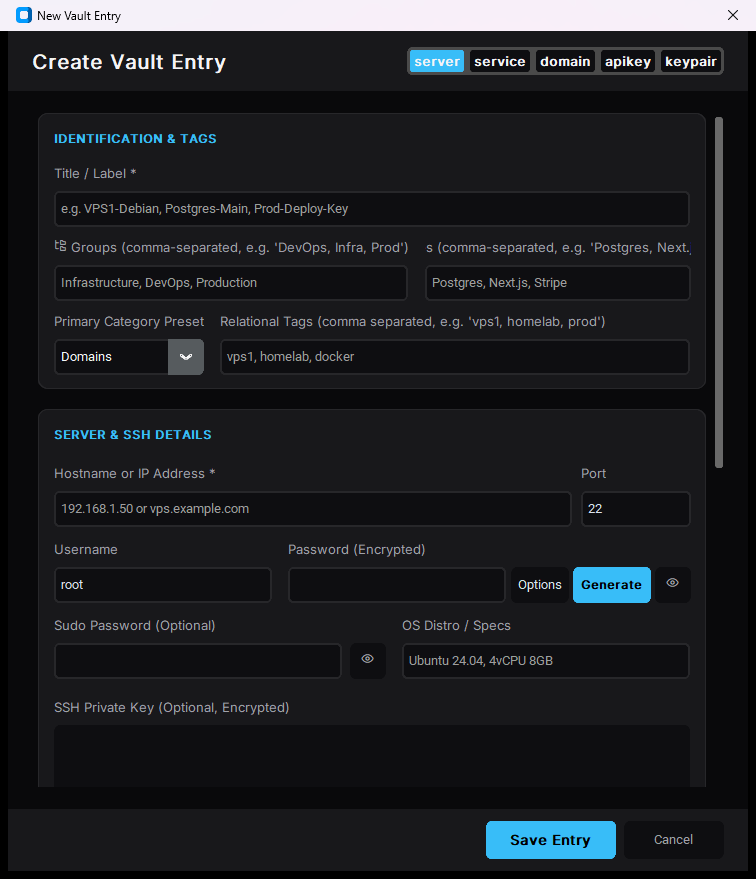
A new entry, with the fields the extension fills.
Filling a password without inventing one
The password field has two buttons beside it:
- Generate makes a strong random password and puts it straight into the field. The entry is saved with the password you can see, so there is nothing to copy out afterwards.
- Options opens the generator so you can decide the length, which character classes it uses, and whether to avoid characters that are hard to read aloud. The same settings become the defaults for Generate afterwards.
Both use Python's secrets module — the same source of randomness the operating system uses for keys, not a random() seeded from the clock.
Editing an entry
Select it in the list and press Edit. The same form opens with everything filled in.
Every save writes a version rather than overwriting. That is not a backup copy sitting somewhere else — the previous ciphertext is kept in the same encrypted file, and the inspector shows how many versions an entry has. To look at an older one, open the entry's history and restore it; restoring writes the old values as a new version, so nothing is ever lost by looking.
Deleting an entry
Select it and press Delete, then confirm. The entry and its files go; its version history goes with it. If there is any chance you will want it back, use Export to take a copy of the vault first — deletion is the one action here with no undo.
Getting values out of the vault
The vault is only useful if a password can reach the place it is needed, so there are several ways out:
| To copy | Press | What lands on the clipboard |
|---|---|---|
| The password | Ctrl+C |
The password |
| The username | Ctrl+U |
The username |
| The host or URL | Ctrl+B |
Hostname, IP or URL |
| The whole entry | Ctrl+D |
Duplicated as a new entry |
Anything copied this way is cleared from the clipboard automatically after the interval set in Settings (30 seconds by default). The status bar shows a countdown while that is pending, so a password is never left sitting on the clipboard for the next program to read.
For logins in a browser, the browser extension fills the form directly instead — nothing passes through the clipboard at all.
Finding an entry again
The search box at the top filters as you type, across titles, usernames, hosts, groups and tags. The sidebar narrows things further by category, and the list header sorts by any column.
Ctrl+Fputs the cursor in the search box from anywhere in the window.- With a vault of a few hundred entries, typing three or four characters is usually faster than browsing.
- The Domains and Servers categories are the quickest way in when you remember the machine but not what you called the entry.
Bulk work
Once there are more than a handful of entries, three tools save a lot of clicking:
- Auto-Organize reads the entries and proposes groups, categories and tags based on what is already in them — useful after an import, when everything has arrived untagged.
- Deduplicate finds entries that describe the same thing (the same host and username, or the same title and password) and offers to merge them, keeping the version history of both.
- Vault Health audits the whole vault for weak, reused, ageing and breached passwords and reports what it finds, with a one-click fix for each. See Vault Health.
Next
- Groups, services and tags — how the shelves work
- The browser extension — filling logins without the clipboard
- Keyboard shortcuts — every key in one table
Updated 2026-11-05