Docs / StarVault manual / Installing StarVault
Installing StarVault
Requirements, the installer, the first run, and portable mode.
StarVault is a single Windows program with one file behind it. There is no account, no server, and nothing to sign in to. Installing it takes about a minute, and the first run asks for one thing only: a master password.
What you need
| System | Windows 10 or 11, 64-bit |
| Disk | about 100 MB for the program, plus room for your vault |
| Administrator rights | none — it installs for your user account alone |
| Internet | not needed to run it, only to download it |
StarVault installs into your own user folder rather than Program Files, so it never asks for elevation and never writes anywhere another account can read. A machine with no internet connection runs it exactly as well as one with.
Installing
Download StarVault-1.1.0-setup.exe from the StarVault project page and run it. The installer is signed with a stable application identity, so installing a later version replaces the earlier one instead of stacking a second copy beside it.
Choose the folder if you want something other than the default, then finish. A shortcut appears on the Start menu and, if you leave the box ticked, on the desktop.
The first run
The first thing StarVault shows is the unlock screen with no vault behind it yet, so it offers to make one.
- Choose a master password. This is the only password StarVault ever asks you for, and it is the only thing that opens the vault. It is not stored anywhere — not on disk, not in the registry, not in a settings file. Argon2id stretches it into the key that decrypts your entries.
- Write it down somewhere physical, or store it in a password manager you already trust. There is no reset link, no recovery email, and no support override. A vault whose master password is lost is a file of random bytes, permanently.
- Optionally turn on the keyfile. With two-factor mode enabled StarVault generates a keyfile and shows it as a QR code you can print or photograph. From then on, opening the vault needs both the master password and that keyfile — so a copy of the vault file alone is useless to anyone who takes it.
- Confirm and unlock. StarVault creates the vault, derives the key, and writes a canary value it will check on every future unlock to tell a correct password from a wrong one quickly.
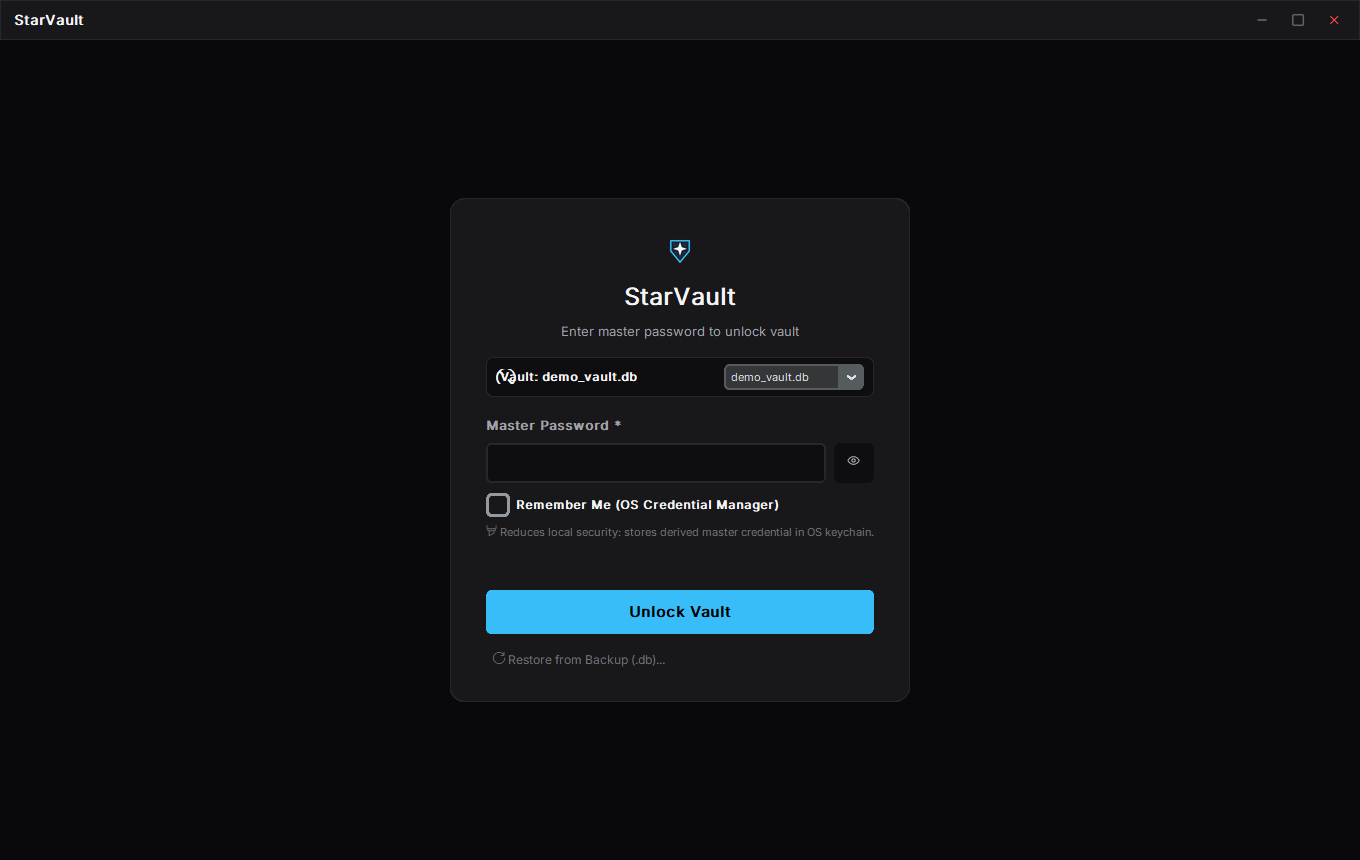
The unlock screen, the first thing you see.
Where the vault lives
By default the vault is one SQLite file at:
%LOCALAPPDATA%\StarVault\starvault.db
Everything — entries, groups, tags, version history, attached files — is inside that single file. Backing up StarVault means copying that file. Moving to a new computer means carrying that file across.
StarVault can mirror the vault for you. Set a backup folder in Settings and it writes a copy of the encrypted vault there every time it saves; point that folder at a USB stick, a network share, or a synced folder and the copy follows along. The mirror is the same encrypted file, so it is no less safe than the original — and no more readable without the master password.
To come back from one, use Restore from Backup (.db)... on the unlock screen and pick the file. StarVault swaps it in with SQLite's own backup routine, so a half-written restore cannot leave you with a broken vault.
If you would rather not install it
StarVault runs as a portable program too. Put StarVault.exe in a folder of its own and launch it with --portable:
StarVault.exe --portable
In portable mode the vault is starvault.db in the folder the program was started from, so the whole thing — program and vault — travels on a USB stick and leaves nothing behind on the machine. This is also the honest way to try StarVault without committing to it.
Uninstalling
Settings → Apps → StarVault → Uninstall removes the program. It does not touch your vault. The file at %LOCALAPPDATA%\StarVault\starvault.db stays where it is, so reinstalling later finds your entries again. Delete that folder yourself only when you are certain you no longer want the vault — and take a backup first if there is any doubt.
Next
- Running StarVault — the window, the tray, and the keyboard
- Adding and editing entries — your first credential
- Defense in Depth: True Local 2FA — the keyfile in detail
Updated 2026-11-05